Shopify Chatbot in Five Minutes or an Assistant That Uses Your Catalog
Launch a Shopify chatbot in five minutes with Inbox or add an embed trained on your catalog. Sync products, capture leads, and skip hiring a developer.

The fastest way to add a chatbot to Shopify is turning on Shopify Inbox, which takes about five minutes and needs zero code. If you want a chatbot that actually knows your catalog, answers pricing and shipping questions correctly, and captures leads, you’ll need a third-party app or embed widget trained on your store data. Pick the route based on how much automation you actually need, then follow the checklist below to get it live.
TL;DR:
- Shopify Inbox offers a quick, zero-code solution for basic live chat but lacks catalog training and multi-channel support.
- Third-party apps require subscription and setup but enable advanced AI features and integration with multiple messaging channels.
- Embedding a widget provides complete control but needs manual code changes and is best for stores already running external chat platforms.
- Regular catalog sync, testing, and automated handoffs are crucial to maintain chatbot usefulness and prevent customer frustration.
- Monitoring key metrics like containment rate, ticket deflection, and conversion lift determines the chatbot’s effectiveness and guides ongoing improvements.
Table of Contents
- Quick Options Overview: Pick the Right Integration Method
- How Do You Install a Chatbot on Shopify Step by Step?
- How Do You Train a Chatbot on Your Product Catalog?
- When Should a Chatbot Hand Off to a Human?
- What KPIs Prove Your Chatbot Is Working?
- What Shopify-Specific Limits Should You Know About?
- How Konvuno Fits This Setup Without a Developer
- Rollout Priorities and the Mistakes That Sink a Chatbot Launch
- Get a Chatbot Live on Your Store This Week
- Sources
Quick Options Overview: Pick the Right Integration Method
Three real paths exist for putting a chatbot on your Shopify storefront, and each fits a different kind of store.
Shopify Inbox lives inside your admin and costs nothing extra. It gives you instant answers pulled from your store policies, plus a shared inbox for live chat. Pick it if you’re a solo operator or small team who wants basic coverage without touching a line of code.
A Shopify App Store app adds AI-driven conversation, multi-channel routing (email, SMS, social), and often deeper catalog training. The tradeoff is a monthly subscription and more setup time, since most apps need catalog syncing and a review of default responses before launch.
An embed or widget gives you the most control. You paste a script tag into your theme, and the bot runs independently of Shopify’s native tools. This suits stores that already run chat on other platforms (a Wix chat widget or Webflow chat widget, for instance) and want consistent behavior everywhere.
Use this quick decision checklist:
- Low skill, no budget: Shopify Inbox.
- Need multi-channel support and advanced routing: an App Store chatbot app.
- Need custom behavior or cross-platform consistency: an embedded widget.
- Selling 100+ SKUs with frequent price changes: prioritize catalog-syncing capability over ease of install.
How Do You Install a Chatbot on Shopify Step by Step?
Each method has its own sequence. Here’s what actually happens once you click “install.”
App install flow:
- Go to the Shopify App Store and search for a chatbot app that fits your needs.
- Click “Add app,” then approve the permissions it requests (usually access to your product catalog, orders, and customer data).
- Run a post-install check: open your storefront in an incognito window and confirm the widget loads without breaking your theme’s layout.
- Complete the app’s onboarding, which typically walks you through catalog sync and initial FAQ setup.
Embed code flow:
- Copy the JavaScript snippet your chatbot provider gives you.
- Go to Online Store > Themes > Edit Code, open
theme.liquid, and paste the snippet just before the closing</body>tag so it loads on every page. - If you only want the bot on specific pages, use a Custom Liquid section instead of editing the global theme file.
- Save, then preview your store to confirm the widget appears correctly.
Shopify Inbox activation:
- In your admin, go to Online Store > Themes > Customize.
- Select App Embeds, then toggle on Online Store Chat.
- Customize the greeting, color, and activator icon so it matches your brand.
- Set up instant answers under the Inbox settings menu, this is where you configure automatic responses to common questions like shipping times and return policy. Shopify’s own documentation walks through each of these settings in detail, including the option to require sign-in before a visitor can chat.
Pro Tip: Test your chatbot on a phone before you announce it anywhere. Widget overlap with the “Add to Cart” button is one of the most common launch mistakes, and it kills conversions before anyone notices the bot is even broken.
Before calling it done, run through this testing checklist: check mobile responsiveness, run a full conversation covering three common questions, and force a human handoff to confirm your support team actually receives the transcript.

How Do You Train a Chatbot on Your Product Catalog?
A chatbot is only as good as what you feed it, and most stores under-invest here. Feed it four core data sources: your product catalog, shipping and returns policies, size or spec pages, and a clean FAQ document.
The smartest move is syncing your catalog automatically rather than uploading it once and forgetting it. Product feeds from Google Merchant, Facebook, or your WooCommerce store update prices and stock levels on their own, so the chatbot never quotes a price that changed last week or tells a customer an out-of-stock item is available.
- Sync your product feed first, before writing a single FAQ answer.
- Pull your top 20 support tickets from the last 90 days and turn each into a trained answer.
- Re-check price and availability answers monthly, or after any sitewide promotion.
- Add size charts and spec sheets as searchable documents, not just linked PDFs.
Salesforce’s 2025 State of Service report found AI already handles 30% of service cases industry-wide, with that figure projected to hit 50% by 2027. That shift only holds up if the underlying data is accurate. A bot trained once at launch and never touched again degrades fast as your catalog changes.
When Should a Chatbot Hand Off to a Human?
Automation without an exit ramp frustrates customers fast. Build these triggers into your setup before launch, not after your first bad review.
- Low-confidence answers: if the bot’s confidence score drops below its threshold twice in one conversation, hand off automatically.
- Checkout or cart friction: any mention of “won’t apply,” “discount code,” or “payment failed” should route to a human immediately.
- Returns and refunds: these carry legal and policy nuance a bot shouldn’t improvise on.
- Direct requests: “talk to a person” should always work, no exceptions.
Set availability windows so the bot tells customers when to expect a reply outside business hours, and pass the full chat transcript plus cart contents to whoever picks up the conversation. An agent who has to ask “what were you just talking about?” defeats the entire point of automation.
What KPIs Prove Your Chatbot Is Working?
Track a handful of numbers, not a dashboard full of vanity metrics.
- Containment rate: the percentage of conversations the bot resolves without a human.
- Ticket deflection: how many support tickets never get created because the bot answered first.
- Response time: should drop to seconds for common questions.
- Conversion lift: compare purchase rates for sessions that used chat versus sessions that didn’t.
- Average handle time after handoff: if agents take longer once a bot hands off a conversation, your context transfer is broken.
Run a simple cohort test: turn the bot on for two weeks, compare support volume and conversion against the two weeks prior. That’s usually enough signal to know if it’s working, especially on stores with steady daily traffic.
Pro Tip: Export your chatbot’s “I don’t know” responses weekly. That list is a ready-made retraining queue, and it’s almost always shorter than store owners expect.
What Shopify-Specific Limits Should You Know About?
Shopify’s own architecture puts real boundaries on what a chatbot can do, and ignoring them causes broken installs.
- Inbox defaults: you control whether visitors must sign in before chatting, plus the greeting text, color scheme, and activator icon, all inside the theme editor’s App Embeds panel.
- Checkout chat is restricted: only one chat extension can be active in the checkout or thank-you page target at a time, and Shopify’s developer documentation requires specific access scopes and app approval before a chat extension can even appear there.
- Never expose API keys in your theme code. Any embed snippet pasted into
theme.liquidis publicly visible in your page source, so keep authentication server-side. - Choose an app over a raw embed for checkout flows. Apps go through Shopify’s review process and handle scope permissions correctly; a hand-pasted script rarely can.
How Konvuno Fits This Setup Without a Developer
Everything above assumes you either have developer time or patience for app-store trial and error. Konvuno skips both.
- One script tag installs the widget. No
theme.liquidediting, no App Store approval wait. - The assistant answers from your FAQs, site content, and synced product catalog, pulling live prices and stock from WooCommerce or your Google Merchant and Facebook feeds.
- Built-in lead capture feeds a CRM automatically, and conversation analytics show exactly what visitors keep asking so you know what to fix first.
- Setup mirrors the checklist above: paste the script, sync your feed, load your top 20 FAQs, then watch the analytics dashboard for low-confidence questions to retrain.
Store owners running on WooCommerce alongside a Shopify presence, or managing multiple storefronts, get one consistent assistant across both instead of juggling separate Inbox settings and app dashboards.
Rollout Priorities and the Mistakes That Sink a Chatbot Launch
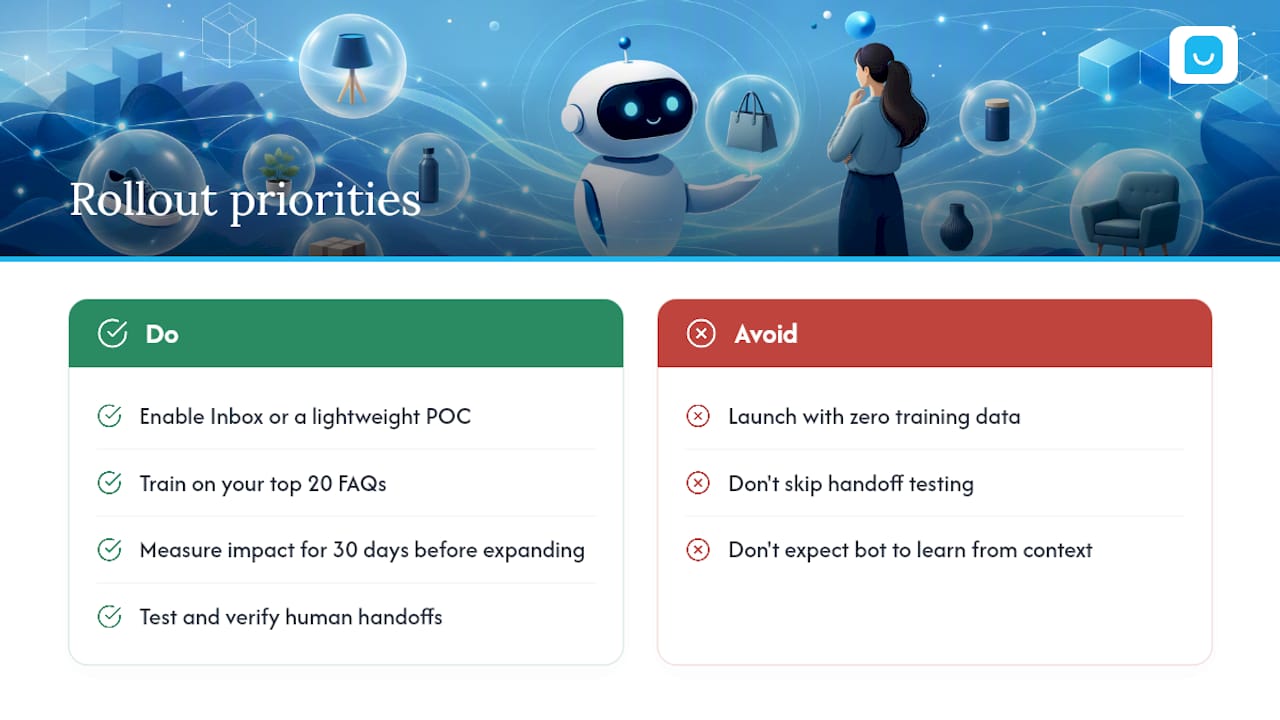
Start small: enable Inbox or a lightweight proof-of-concept widget, train it on your top 20 FAQs, and measure impact for 30 days before expanding scope. Most failed rollouts share the same root cause, launching with zero training data and hoping the bot figures it out from context clues that don’t exist.
The second most common mistake is skipping handoff testing. A bot that can’t hand off cleanly just relocates the frustration instead of solving it. For a small store, budget a few hours for setup and another hour weekly for the first month to review conversation logs and patch gaps.
— Konstantin
Get a Chatbot Live on Your Store This Week
Konvuno gets you past the app-store comparison shopping and straight to a working assistant. One script tag installs it, your product catalog syncs automatically from WooCommerce or your Google Merchant and Facebook feeds, and every conversation feeds a built-in CRM so leads never fall through the cracks.
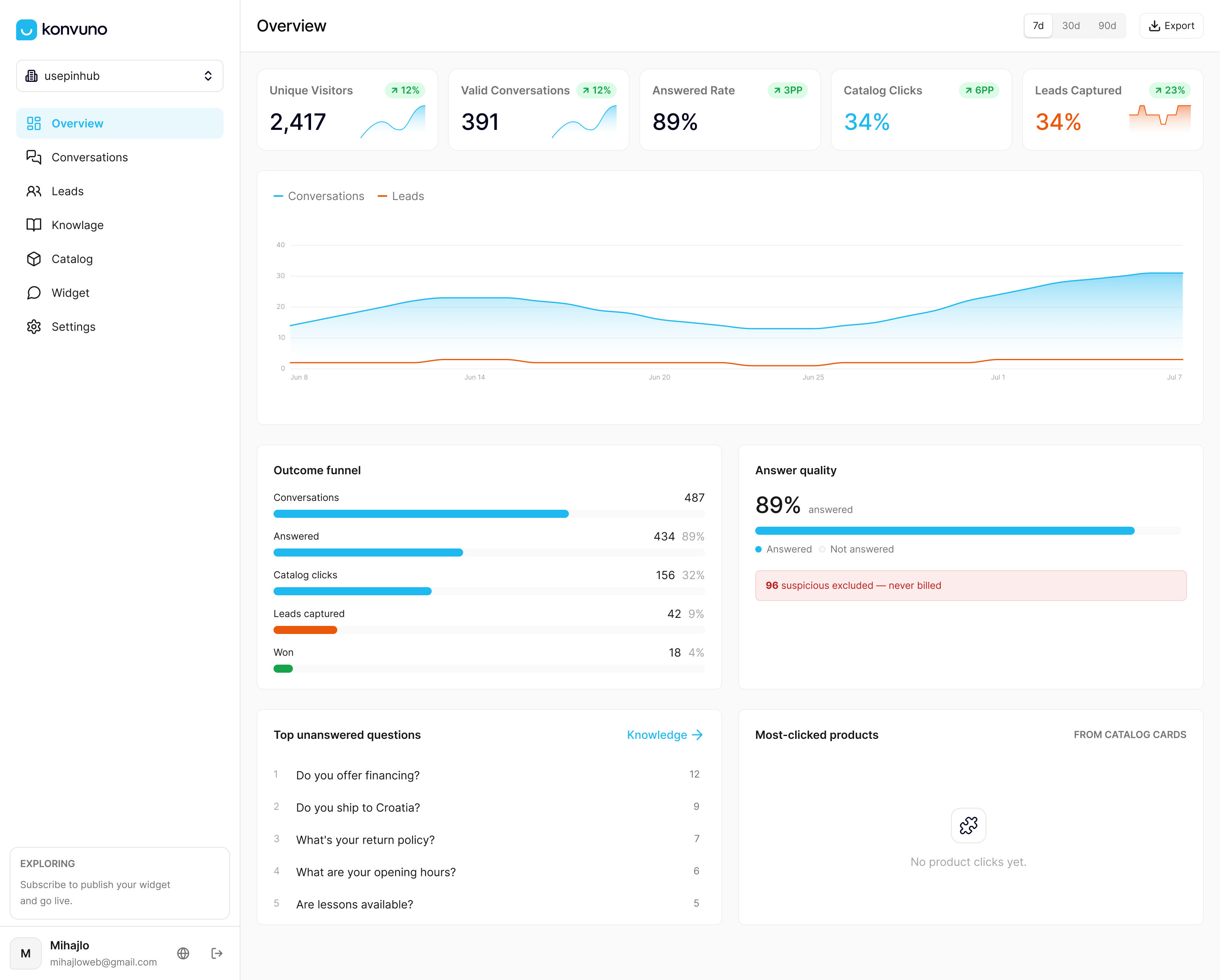
Onboarding walks you through connecting your catalog, importing your top FAQs, and picking from seven supported languages if you sell across borders. If instant, accurate answers matter more to you than a DIY project, start with the FAQ Assistant to see how catalog-backed answers work before rolling out the full assistant, or head straight to Konvuno to start a trial and have it live on your storefront by the end of the day.
Sources
- Salesforce — State of Service report (2025)
- Shopify Help Center — Customize Shopify Inbox chat settings and appearance